The Best PDF Editor Apps in 2026
Choosing a PDF editor app is harder than the store rankings suggest. Some products are free readers with paid editing. Others are web toolkits with mobile companions. A few are built as phone apps first. Feature lists look similar until you hit free-tier limits, watermarks, or a workflow that only works well on a laptop.
This comparison focuses on useful mobile PDF editing for iPhone, iPad, and Android. We look at platform availability, text editing, annotation, signing, scanning, conversion, organization, free-tier honesty, and whether the app feels usable on a phone. Picks are by job, not one crown.
Quick comparison
A scan-friendly snapshot. Platform columns reflect current official mobile availability. Free-option notes summarize publicly documented tiers and may change by region or store.
| App | Best for | iPhone/iPad | Android | Free option |
|---|---|---|---|---|
| Adobe Acrobat | Cross-platform PDF workflows | Yes | Yes | View, annotate, fill & sign |
| PDFgear | Free core tools on mobile (as marketed) | Yes | Yes | Core tools free; no ads/watermarks claimed |
| Xodo | Mobile markup and scanning | Yes | Yes | Limited free; watermarks on free usage |
| Foxit PDF Editor | Acrobat-style deep edit | Yes | Yes | View, annotate, handwritten sign |
| iLovePDF | Convert, organize, toolkit tasks | Yes | Yes | Limited processing; ads on free |
| WPS Office | Office suite + PDF in one app | Yes | Yes | Basic PDF features; Pro unlocks full edit |
| PDFix | Mobile-first PDF toolkit | Yes | Yes | 1 edit/day; 2 other tools/day; unlimited view |
Our top PDF editor apps
Each section covers platforms, strengths, tradeoffs, and who the product fits. Details are limited to what official product pages, help docs, and store materials support.
Adobe Acrobat
- Best for
- Users who need the category standard across phone, tablet, and desktop
- Platforms
- iPhone, iPad, Android, plus desktop and web Acrobat products
- Key capabilities
- Free viewing, comments, highlights, and Fill & Sign on mobile
- Premium plans for create, edit, export, combine, organize, and compress
- Mobile-only SKUs such as Acrobat Premium and Acrobat Reader Plus documented by Adobe
- Scan workflows often paired with Adobe Scan
- Notable strength
- Trust, mature mobile help, and a free tier that covers annotate and sign without a subscription.
- Notable limitation
- Deep edit, export, and organize features sit behind Premium or Pro-class plans. The plan matrix can be confusing, and scanning is often split across apps.
- Who should consider it
- Teams already in Adobe’s ecosystem, or anyone who needs the same PDF workflow on mobile and desktop.
PDFgear
- Best for
- People who want a free mobile PDF suite without ads or watermarks
- Platforms
- iPhone, iPad (iOS 15+), and Android
- Key capabilities
- Text editing claimed on official iOS and Android product pages
- Annotation, forms, and signing
- Page organize, compress, and conversion marketed on mobile pages
- Offline editing claimed; Copilot features need a network connection
- Notable strength
- Aggressive free positioning: official mobile pages emphasize free use without ads or watermarks, with core features remaining free.
- Notable limitation
- Android FAQ notes you cannot directly edit text in scanned or image-only PDFs. Official Android copy also says some advanced options may incur charges in the future.
- Who should consider it
- Budget-conscious users who want broad free tools and can accept that monetization may evolve.
Xodo
- Best for
- On-the-go markup, stylus work, and built-in scanning
- Platforms
- iPhone, iPad, Android, plus Xodo Web and desktop products
- Key capabilities
- Edit, annotate, and redact marketed on the mobile page
- Sign and fill forms
- Built-in scanner
- Convert, compress, and organize tools
- Apple Pencil and S-Pen support noted in Xodo’s plans materials
- Notable strength
- Strong mobile heritage with a clear focus on annotation, scanning, and stylus-friendly reading and markup.
- Notable limitation
- Xodo’s own 2026 plans guide describes free-plan usage limits and watermarks on free usage. Pricing can differ by platform and store.
- Who should consider it
- Students, reviewers, and field users who live in comments, highlights, and scans more than deep desktop publishing.
Foxit PDF Editor
- Best for
- Users who want Acrobat-style deep edit without picking Adobe by default
- Platforms
- iPhone, iPad, and Android (Foxit PDF Editor Mobile)
- Key capabilities
- Free open, view, annotate, share, form fill, and handwritten signatures (per Foxit store/help notes)
- Premium for create/export, convert, combine, edit text and images, organize, protect, and more
- Scan to PDF listed on store listings
- Documented free trial of advanced features and cross-device subscription via Foxit Account
- Notable strength
- Clear free vs advanced feature split and a serious professional feature list on mobile.
- Notable limitation
- Many core “editor” capabilities are paywalled. OCR depth on mobile should be confirmed in-app rather than assumed from desktop docs.
- Who should consider it
- Professionals who need advanced mobile editing and prefer an Adobe alternative with an explicit free/paid boundary.
iLovePDF
- Best for
- Convert, merge, split, compress, and other toolkit-style jobs
- Platforms
- iPhone, iPad, Android, plus the well-known web toolkit and desktop apps
- Key capabilities
- Large convert and organize toolset (merge, split, compress, protect, and more)
- Sign PDF and Premium digital signatures on the pricing matrix
- Scanner and OCR marketed on mobile store and pricing materials
- Annotate/markup and Edit PDF listed among tools
- Notable strength
- Fast toolkit breadth. Official pricing makes freemium economics visible: limited free processing versus Premium unlimited, ad-free use across web, mobile, and desktop.
- Notable limitation
- Free use includes limits and ads. iLovePDF started as a web toolkit. Convert and organize matter more there than deep Word-style text edit.
- Who should consider it
- Anyone who mainly needs reliable convert/organize/scan jobs and is fine with a freemium toolkit model.
WPS Office
- Best for
- People who want Docs, Sheets, Slides, and PDF in one app
- Platforms
- iPhone, iPad, and Android
- Key capabilities
- PDF read and annotate alongside full office documents
- PDF edit, convert, merge/split, and signatures marketed across WPS materials
- Scanner and text-recognition themes on Android marketing
- WPS Standard free tier vs Pro+ for full PDF editing and conversion (official buy page)
- Notable strength
- One app for everyday office work plus PDF. Official buy page states free basic PDF features and Pro+ for full PDF editing and conversion.
- Notable limitation
- Free “basic PDF features” are not enumerated tool-by-tool on the buy page. Official pricing notes that listed Pro+ prices apply to PC and Android; iOS pricing may differ in the App Store.
- Who should consider it
- Users who already live in an office suite and want PDF tools without installing a separate specialist app.
PDFix
- Best for
- Mobile-first PDF work on iPhone, iPad, and Android with on-device processing
- Platforms
- iPhone, iPad, and Android
- Key capabilities
- Word-like editing of existing PDF text
- Annotate with pen, highlighter, eraser, and vector shapes
- Sign PDFs; scan documents with on-device OCR where applicable
- Merge, split, organize, compress, protect/unlock, and PDF ↔ Word conversion
- No watermarks; free tier with clear daily limits; optional Premium
- Notable strength
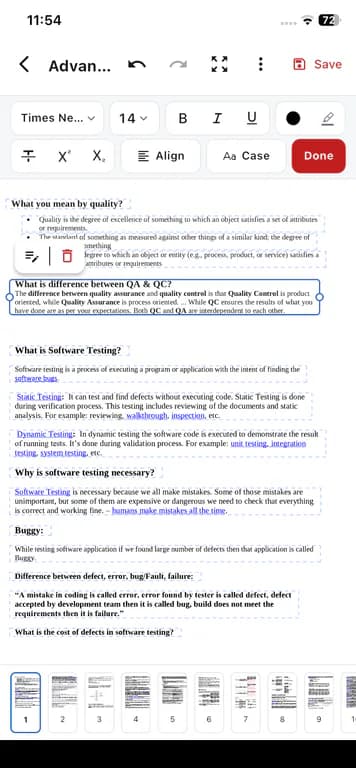
- Built as a phone PDF toolkit rather than a shrunk desktop suite: text edit, annotate, sign, scan, organize, convert, and compress in one mobile app.
- Notable limitation
- Not a desktop Acrobat replacement. Free accounts have daily limits, and Free includes ads. Premium is optional for unlimited operations and no ads.
- Who should consider it
- People who primarily edit, sign, scan, and convert PDFs on their phone and want processing to stay on device for core tools.
Free accounts can edit 1 PDF per day and use other PDF tools on up to 2 PDFs per day. PDF reading is unlimited. Optional Premium removes ads and unlocks unlimited operations, billed through Apple or Google Play at display prices of $3.99 per month or $20.99 per year. The website does not charge your card.
PDF processing stays on the phone. Files are not uploaded to Cloud for edit / convert / scan / sign. The app may still use the network for store receipts, Free-tier ads, diagnostics, push notifications, and optional sign-in.
Learn more about the PDFix PDF editor app, including how to edit PDF text on your phone.
Recommendations by use case
Categories below reflect different jobs. No single app wins every scenario.
Best overall for cross-platform PDF work
Adobe Acrobat. It remains the cross-platform default: free annotate and Fill & Sign on mobile, with Premium paths for edit, export, and organize when you need the full Acrobat stack.
Best free/mobile option
PDFgear. Official mobile pages push free use without ads or watermarks for core features. Check their note that some advanced options may be paid later, and that scanned PDFs may not support direct text edit on Android.
Best for Android
PDFix. Phone PDF toolkit with text edit, sign, scan, convert, and on-device processing. Pick this when Android is where you actually edit PDFs.
Best for iPhone/iPad
PDFix. Same mobile-first toolkit on iOS and iPadOS. Prefer Adobe if you need deep desktop parity or an existing Acrobat subscription.
Best for advanced/professional workflows
Foxit PDF Editor. Clear free vs advanced mobile split and a professional feature set. Adobe still wins if your organization already standardizes on Acrobat.
Best for simple scanning/conversion
iLovePDF. Toolkit strength in convert, organize, scan, and related jobs, with transparent freemium limits on the official pricing page.
What to look for in a PDF editor app
Use these criteria to judge any app, including ones not listed here.
Text editing
Can you change existing PDF text, or only add overlays? Word-like controls matter when you fix typos or update clauses on a phone.
Annotation
Highlights, pens, shapes, and comments for review. Many free apps cover markup even when text edit is paid.
Signing
Handwritten or typed signatures and form fill. Confirm whether certificate-grade digital signatures require Premium.
Scanning and OCR
Camera capture, multi-page review, and whether OCR makes text searchable. Scanned image PDFs often cannot be edited like native text.
Page organization
Merge, split, reorder, rotate, and extract pages when documents arrive in the wrong order.
Compression
Useful before email or uploads. Check whether compress is free or Premium-only.
File conversion
PDF to Word, Word to PDF, and related formats. Quotas and watermarks often appear here on free tiers.
Platform availability
Confirm iPhone, iPad, and Android support, and whether feature depth matches across stores.
Privacy and local processing
Some apps process on device; others upload to vendor clouds. Read what each product states for edit, convert, scan, and sign.
Free-tier restrictions
Daily limits, ads, watermarks, page caps, and locked tools. “Free PDF editor” is not one product category.
Subscription cost
Store prices vary by region and promo. Prefer official pricing pages and in-app offers over third-party roundups.
Ease of use
Phone UI, file pickers, and whether common tasks take three taps or a desktop-style ribbon.
Free vs paid PDF editors
“Free PDF editor” can mean a free viewer with paid editing, a toolkit with daily quotas, a watermarked trial, or a genuinely free suite with a future-pay caveat. Always separate free viewing from free editing.
Common free-tier patterns in 2026: Adobe and Foxit include annotate and basic signing free while gating deep edit; Xodo documents watermarks and usage limits on free; iLovePDF limits processing and shows ads; WPS keeps basic PDF free and unlocks full edit in Pro+; PDFgear markets core mobile tools as free without ads or watermarks.
For PDFix: Free accounts can edit 1 PDF per day and use other PDF tools on up to 2 PDFs per day. PDF reading is unlimited. Free includes ads. Optional Premium removes ads and unlocks unlimited operations, billed through Apple or Google Play at display prices of $3.99 per month or $20.99 per year. The website does not charge your card.
Android vs iPhone/iPad
Before you commit to an app, check platform availability and how complete the mobile feature set is on your device. File pickers, scanning, stylus support, and store billing differ between Android and iPhone/iPad even when the brand name matches.
Ask whether text editing, signing, annotation, conversion, and scanning behave the same on both stores. Suite apps (like WPS) and web-first brands (like iLovePDF) may feel different from phone PDF editors.
If you want a dedicated mobile editor, compare a PDF editor for iPhone and iPad with a PDF editor for Android. PDFix ships on both platforms as a mobile toolkit; do not assume perfect feature parity across every competitor without checking their store listings.
How PDFix compares
PDFix is for people who edit PDFs on a phone, not a shrunk desktop suite. You get Word-like text edit, annotate, sign, scan with on-device OCR where it applies, organize, compress, and PDF to Word / Word to PDF.
PDF processing stays on the phone. Files are not uploaded to Cloud for edit / convert / scan / sign. That matters if you do not want those files uploaded to a vendor cloud for those operations. Network use can still happen for receipts, ads, diagnostics, notifications, and optional accounts.
You can sign PDFs from your phone, annotate and highlight PDFs, and scan documents and create searchable PDFs without treating the phone as a second-class client. Adobe or Foxit may still fit better when your job requires deep desktop parity or enterprise certificate workflows.
FAQ
Common questions about PDF editor apps
Short answers based on this comparison and current PDFix product rules.
It depends on your workflow. Adobe Acrobat is the strongest overall pick for broad cross-platform PDF work. For a dedicated mobile toolkit on iPhone, iPad, and Android, PDFix is a strong choice. PDFgear stands out when you want a free mobile suite as marketed today.
Which PDF editor should you choose?
Match the app to the job. Pick Adobe for broad ecosystem workflows, PDFgear for free mobile breadth, Foxit for advanced paid editing, iLovePDF for convert and scan toolkit tasks, WPS when you need an office suite, and PDFix when your primary device is a phone and you want a focused mobile PDF toolkit with clear freemium rules.
If that mobile-first profile fits, try the PDFix PDF editor app on iPhone and iPad or Android.
Prefer a product page first? Start at PDFix home.